What File Do I Need to 3D Print Something?
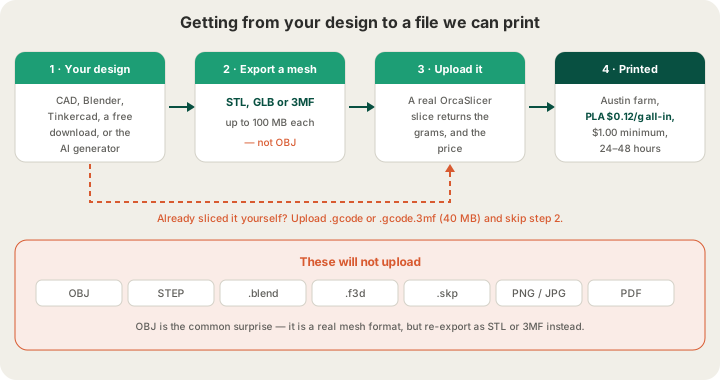
To 3D print something you need a mesh file: a 3D model saved as a closed surface made of triangles. X3D Studios accepts three mesh formats, STL, GLB and 3MF, plus finished G-code (.gcode or .gcode.3mf) if you have already sliced the model yourself. STL is the safe default when you are not sure. What will not work is a photo, a PDF, a CAD project file, or an OBJ, which is a real mesh format but is not on our accepted list.
That is the whole answer. The rest of this guide covers what each format actually carries, why some perfectly good 3D files still get rejected, how to export the right one from the app you already use, and the three things worth checking before you upload at /print.
Why the File Has to Be a Mesh
A 3D printer has no concept of a cup or a bracket. It reads a long list of coordinates, extrusion amounts and temperatures. Getting from an idea to that list is the slicer's job, and a slicer needs something it can slice: a shell that unambiguously separates inside from outside, so a horizontal plane cut through it produces a closed loop to trace. Mesh formats store exactly that, as a table of vertices plus a table of triangles connecting them.
This is why "I have the design" and "I have a printable file" are different sentences. A Fusion 360 .f3d holds a feature history, not a surface. A STEP file holds mathematically perfect NURBS surfaces that a CAD kernel understands and a slicer does not. A photo holds pixels. Each of those can produce a mesh, but the conversion happens inside the app that made the file, not in our uploader. If you want the deeper comparison of what each format keeps and throws away, we wrote it up in /blog/stl-vs-obj-vs-3mf-vs-step-export-formats-explained.
Having a mesh is also not the same as having a printable mesh. It still has to be watertight, thick enough to survive handling, and free of flipped or duplicated faces. That is a separate problem covered in /blog/why-print-ready-matters-mesh-validation, and it is why every upload here gets a server-side geometry review before you are allowed to pay rather than after.
The Four Files X3D Studios Accepts
Four extensions get through the uploader on the print page: .stl, .glb, .3mf, and G-code as either .gcode or .gcode.3mf. Mesh files are capped at 100 MB, already-sliced files at 40 MB. Here is what each one is actually carrying.
| Format | What it stores | Size cap | Reach for it when |
|---|---|---|---|
| STL | Triangles only. No colour, no units, no print settings | 100 MB | You just need the shape made. The universal default |
| GLB | Triangles plus colour and texture in one binary file | 100 MB | Your model came out of a web tool or an AI generator |
| 3MF | Geometry in real millimetres, plus colour and slicer settings | 100 MB | Exact scale or multi-colour matters and must survive the handoff |
| .gcode / .gcode.3mf | Finished toolpaths for one specific printer and profile | 40 MB | You sliced it yourself and want that exact result |
STL: the safe default
Every CAD package, every mesh editor and every model repository can produce an STL, which is the entire reason to use it. It stores nothing but triangles: no colour, no material, no declared unit. That last omission is the one that bites people. An STL exported from Blender in metres and an STL exported from Fusion in millimetres look identical to the file system and differ by a factor of a thousand on the print bed. Our print page shows the bounding box it read out of your file in millimetres before you order, so glance at it.
GLB: geometry with colour attached
GLB is the binary form of glTF, and it is what most web-based and AI tools hand you because it packs geometry, colour and texture into a single file with nothing to unzip. We take it directly, no conversion step on your side. For a single-colour print the colour data is simply ignored and the part comes out in whichever filament you pick at checkout; the geometry is all the slicer needs.
3MF: the one that keeps your millimetres
3MF was designed for 3D printing specifically, and when you have a choice it is the best of the three. It records real-world units, so a 40 mm bracket arrives as a 40 mm bracket with no guessing. It can carry per-object colour assignments, which is what you want for a multi-colour part off our 4-tray AMS. And it can carry slicer settings and plate layout, so a 3MF saved out of Bambu Studio or OrcaSlicer brings your intent with it rather than just your triangles.
G-code: you already did the slicing
If you run OrcaSlicer or Bambu Studio yourself, you can skip the middle step and upload the sliced file, .gcode or .gcode.3mf, up to 40 MB. The price then comes from the filament figure already inside the file rather than from a fresh slice. Two conditions apply: it has to be sliced for a machine in our fleet, which is Bambu Lab H2S and P2S, and it has to pass an automated G-code safety validation on arrival that rejects out-of-bounds moves and temperatures our printers will not run. Uploading G-code is also the only way to guarantee an exact layer-by-layer result, because nothing re-slices it.
Good 3D Files That Still Will Not Upload
Most rejected uploads are not broken files at all. They are the right design in the wrong container. The usual suspects:
- OBJ. A real mesh, just not on our list. Export STL or 3MF from the same app instead.
- STEP, STP and IGES. CAD interchange formats built from mathematical surfaces. Your CAD app converts them to triangles on export; our uploader does not.
- Project files: .f3d, .blend, .skp, .3dm, .sldprt. These are an application's working document, not a portable model.
- Images: PNG, JPG, HEIC, PDF, a screenshot of a part. There is no 3D data in a picture, though there is a route from one, covered further down.
- ZIP archives. Unzip first and upload the model that is inside.
- Mesh files over 100 MB, usually a raw sculpt at millions of triangles. Decimate to a few hundred thousand; a 0.4 mm nozzle cannot resolve more than that anyway.
Exporting From the App You Already Use
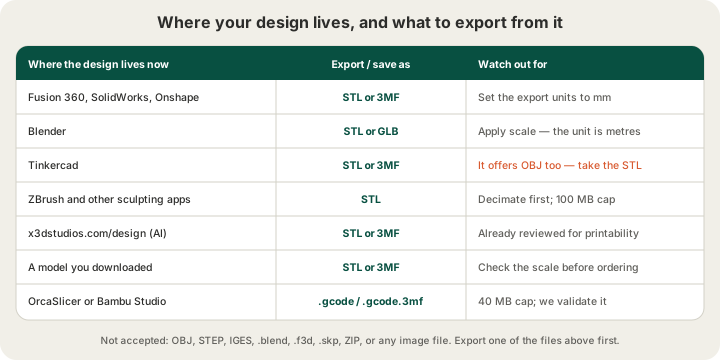
The pattern never changes: File, then Export, then pick STL or 3MF, then confirm the units say millimetres. The traps are where apps differ. Blender's scene unit is metres and it does not bake object scale into the export unless you tick that box, which is how a 50 mm phone stand arrives as a 50 metre one. Fusion 360 exports STL from the right-click menu on the body in the browser tree rather than from the file menu, and its refinement setting decides how faceted your curves look. Tinkercad offers OBJ in the same dropdown as STL, so take the STL. ZBrush and other sculpting tools will happily hand you a nine-million-triangle mesh that no printer can use; decimate before exporting.
Three Checks Before You Hit Upload
- Units and scale. Confirm the longest dimension in millimetres, not inches and not metres. The print page shows the bounding box it read from your file, and you can rescale there before ordering.
- Build volume. Each part has to fit inside 340 x 320 x 340 mm, the Bambu Lab H2S bed. Anything larger has to be split into sections and joined after printing.
- File size. 100 MB for STL, GLB and 3MF; 40 MB for sliced G-code. If a sculpt is over the limit, reduce the triangle count rather than compressing the file.
What Happens to Your File After Upload
The file gets a server-side geometry review, then a real slice. We run your model through OrcaSlicer using the profile for the material and layer height you picked, and the grams that come back are what you are billed on: PLA at $0.12 per gram all-in, filament and normal machine time together, rounded up to the whole gram with a $1.00 minimum per part. Premium 0.1 mm layers price at 1.75 times the standard 0.2 mm rate, because they genuinely take that much longer to print. Nothing about the file format changes the price; only the grams do.
Once you order, the job joins the queue at our Austin farm, a fleet of Bambu Lab H2S and P2S machines with 4-tray AMS units and live camera streams on the floor. Most orders print in 24 to 48 hours. Shipping is $7 flat anywhere in the US and free over $50, or you can collect in Austin. The order page walks you through placed, printed, packed, shipped and delivered, so you always know which of those five states the job is in.
What If You Do Not Have a File at All?
Three routes, all of which end in a file the uploader accepts. Describe the object in a sentence at /design and the AI generator builds a model in about 60 seconds, with the printability review attached before you can order. Give it a photo instead of a prompt and the same generator infers the geometry the camera never saw, which works better than most people expect and is broken down honestly in /blog/image-to-3d-model-photo-to-print. Or download something already made: the large model repositories hand out STL and 3MF, so there is no conversion at all. If you have never ordered a part this way, /blog/how-to-3d-print-without-owning-a-printer walks the whole route end to end.
FAQ
What file format do 3D printers use?
Printers themselves read G-code, the list of movements, extrusions and temperatures. People almost never hand over G-code, though. You hand over a mesh file such as STL, GLB or 3MF, and a slicer converts it into G-code for the specific machine that will print it. Both ends of that chain upload fine here, which is what the two lanes in the diagram above mean.
Can I 3D print from a photo or a PDF?
Not directly, because neither contains 3D geometry. A photo can become 3D indirectly: the generator at /design infers a full model from a single image in about a minute and you can order the result immediately. A PDF drawing has no route except re-modelling it in CAD, though the dimensions on the drawing make that quick for a competent modeller.
Do you accept OBJ files?
No. STL, GLB, 3MF and G-code only. OBJ is a perfectly good mesh format, it is simply not on our accepted list. Re-export the same model as STL or 3MF from whatever produced the OBJ and you lose nothing that affects the print, since a single-colour FDM part uses the triangles and ignores the texture data anyway.
How big can the file be, and how big can the part be?
Mesh files up to 100 MB and sliced files up to 40 MB. The part itself has to fit inside 340 x 320 x 340 mm, the Bambu Lab H2S build volume. Larger designs get split into sections that bolt or glue together, which is standard practice for helmets, cosplay props and enclosures and usually improves print quality by removing overhangs.
Ready to get started?
Upload a 3D model for instant pricing, or generate one with AI.